Prepare Trader Workstation
Step 3 of the setup. About ten minutes, and the video walks through every screen.
The Bridge talks to Trader Workstation over a local connection. Out of the box, Trader Workstation does not accept that connection, and it does not keep a record the Bridge can fall back on. You have to switch both on, and that is six settings in four places.
Do this before you start the Bridge. The Bridge cannot connect while Trader Workstation refuses the connection, and the errors you get in that state do not tell you which setting is missing.
These settings are stored per account. Set them in your paper account, log in to your live account afterwards, and you will find the defaults again — API access off, connection refused. The symptom looks exactly like a wrong port number and is not one. Set them once for every account you intend to trade from.
Install and log in
Install Trader Workstation (opens in a new tab) on the machine that will run the Bridge, and log in.
IB Gateway is no longer supported. From Bridge 0.25.0 on, the setup needs Trader Workstation.
Gateway has no report export — its configuration tree ends at Orders → Smart Routing. That matters more than it sounds: if the Bridge is not connected at the moment a fill happens, it cannot ask Interactive Brokers about it afterwards. The API does not reach past the current day. The only record that survives the day boundary is the file Trader Workstation writes itself, and Gateway never writes one. On a Gateway setup a missed fill stays missed — the position sits in your portfolio without a strategy, and a model exit never touches it.
Trader Workstation needs a lot of memory: at least 8 GB, and more is always better. See the minimum requirements.
For your first run, log in to your paper account.
Nothing special. Install it, log in, and leave it running.
Open the configuration window
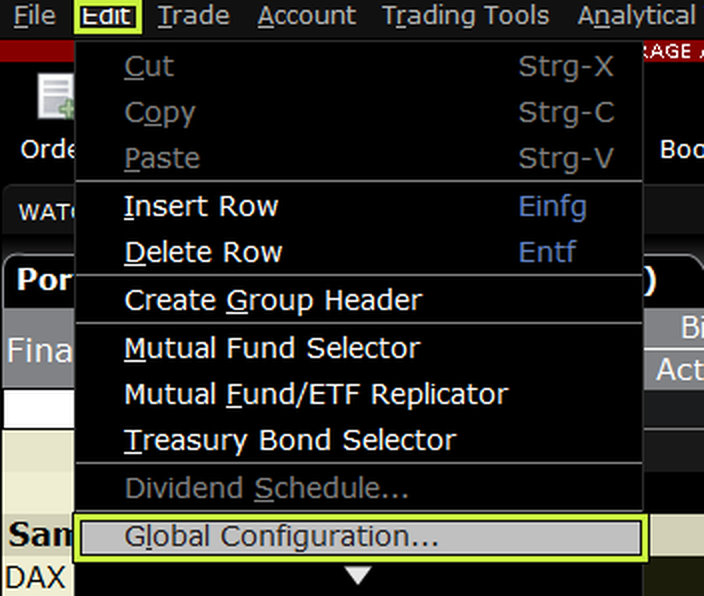
In some Trader Workstation builds the same entry sits under File instead of Edit, and the gear icon in the toolbar opens the same window.
Then open the API branch in the tree on the left. It has three children; you need two of them.
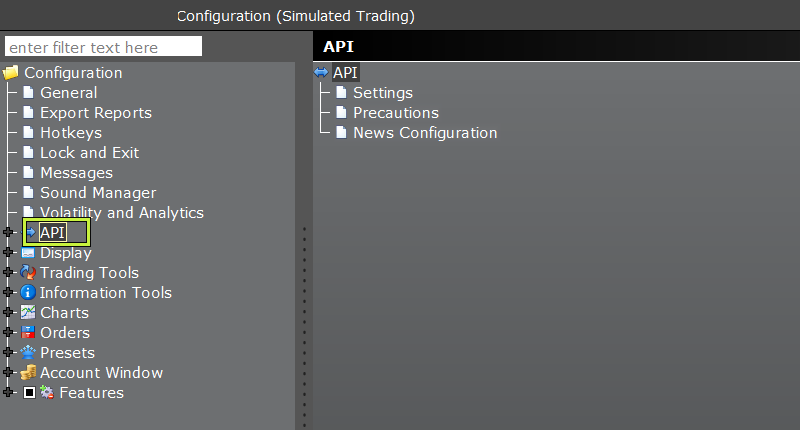
If a setting named below is nowhere to be found, click Some options are hidden… at the bottom left of this window. Trader Workstation hides part of its configuration by default, and which part depends on your account type.
API → Settings
Three things on this screen. Two switches and a number.
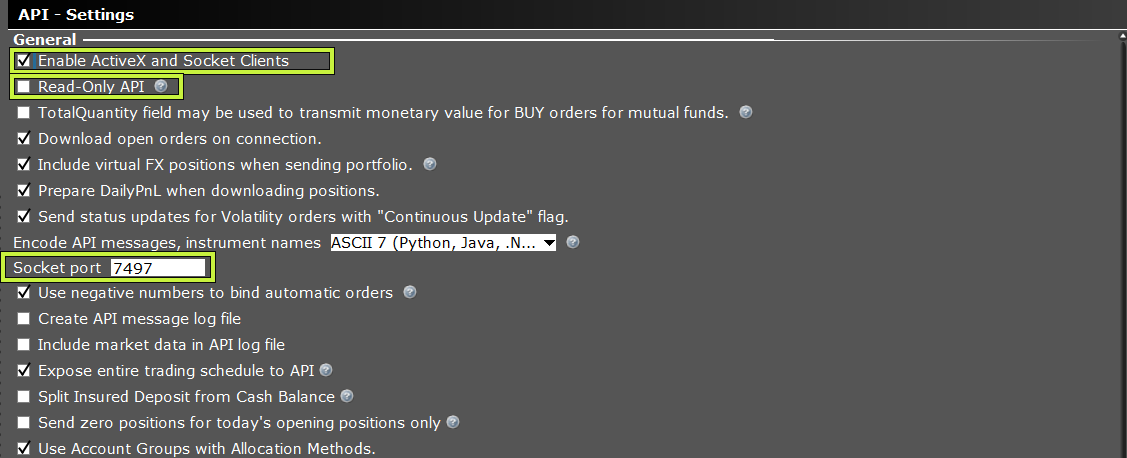
Enable ActiveX and Socket Clients — switch it on
Without this, Trader Workstation accepts no connection at all. The Bridge runs into a timeout and can only report that nobody answered.
Read-Only API — switch it off
This is the one that costs people a trading day. Leave it ticked and everything looks healthy: the connection holds, heartbeats arrive every minute, the status card in Ordertune is green. Only the sending of orders fails — and you find out on the first day you actually release something.
Socket port — write down what is in the field
Note the number in Socket port. Read it off the screen; do not derive it. When you pair the Bridge, its setup window searches for Trader Workstation and offers the port that answers, and this is the number to compare it with.
The table below is what Interactive Brokers starts with. It is not a rule — the port is a setting, and it does not follow from which account you logged in to. Log in live while Trader Workstation still listens on 7497, use 7496 because a table said so, and you get connection refused with nothing to indicate why.
| Account | Default port |
|---|---|
| Paper | 7497 |
| Live | 7496 |
If you see 4001 or 4002 in the field, you are looking at IB Gateway rather than Trader Workstation. Those are Gateway's ports, and Gateway is no longer supported — see the note at the top of this page.
Logged in with your paper account, the field usually says 7497; with your live account, most likely 7496. The field is what counts, so always check it.
Trusted IPs — 127.0.0.1
The Bridge runs on the same machine as Trader Workstation and connects over the loopback address. If it is not on the list, Trader Workstation refuses the connection.
Master API client ID — leave it empty
If a value is set, Trader Workstation accepts only that one client id, and the Bridge connects with a different one.
Save

API → Precautions
One switch here.
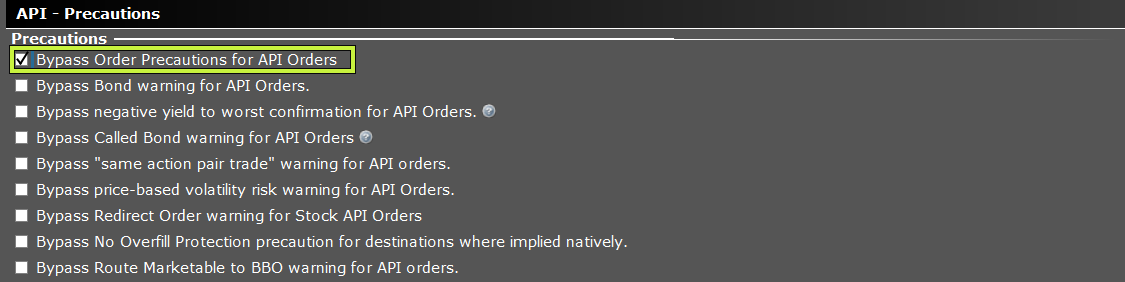
Bypass Order Precautions for API Orders — switch it on
Otherwise Trader Workstation holds every order at a confirmation dialog. If the Bridge runs on a machine you are not sitting in front of, nobody sees that dialog, and the order waits there until someone logs in.
Leave the other entries on this screen alone.
Click Apply.
Lock and Exit → Auto restart

Interactive Brokers forces Trader Workstation to restart or log out once a day. The time is yours to choose, as long as it lies outside trading hours — 05:00 CET, for example. That is IBKR doing it, not us — and a Bridge without a logged-in Trader Workstation stands still at the US open.
Pick Auto restart rather than Auto logoff, and set a time outside your trading hours. Trader Workstation then comes back on its own every day without asking for credentials.
Click Apply, then OK.
Once a week, Interactive Brokers asks for a full login, with your password and two-factor confirmation. Auto restart does not cover that, and nothing should: it is your broker login, and it stays with you. Log in to Trader Workstation yourself once a week. Leaving it running shows how Trader Workstation and the Bridge start on their own after a reboot.
Export Reports
This is the one that saves a fill you would otherwise lose.
If the Bridge is not running at the moment an order fills — an update, a reboot, a machine that went to sleep — it cannot ask Interactive Brokers about that fill afterwards. The API only reaches back to the start of the current day, and not one minute further. What does survive is a file Trader Workstation writes on its own, whether or not anything is connected to it. Switch that on and a missed fill is recoverable. Leave it off and the position sits in your portfolio without a strategy, and a model exit never touches it.
Open Global Configuration → Export Reports (German: Berichte exportieren).
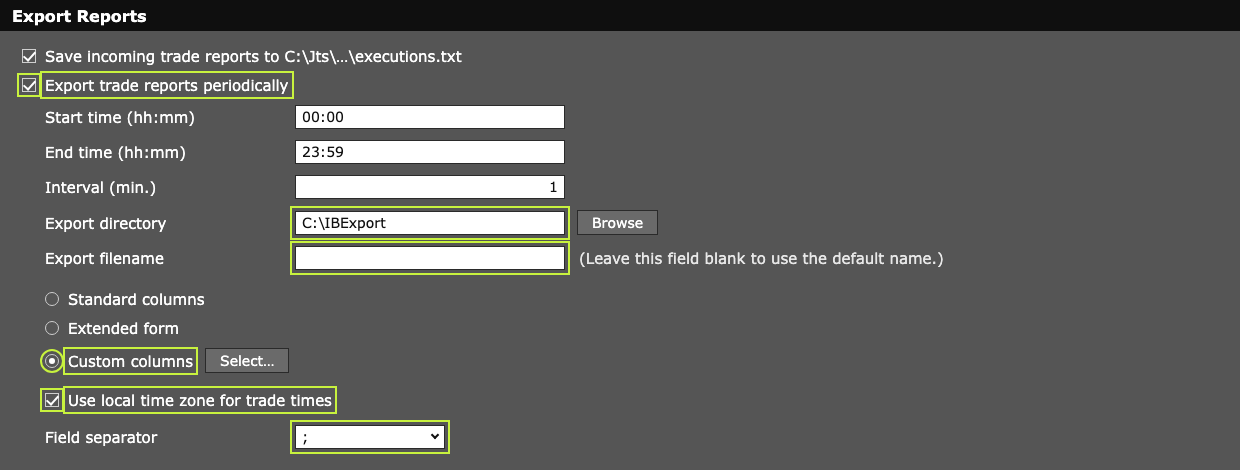
The first line of this pane — Save incoming trade reports to C:\Jts\…\executions.txt — is a different mechanism and not the one the Bridge reads. Leave it however you find it. The Bridge only reads dated .csv files out of the export directory below.
| Setting | Value |
|---|---|
| Export trade reports periodically | on |
| Start time | 00:00 |
| End time | 23:59 |
| Interval (min.) | 1 |
| Export directory | see below — it differs per system |
| Export filename | leave empty |
| Column selection | Custom columns — the third of three radio buttons, see below |
| Use local time zone for trade times | on |
| Field separator | ; |
Start and end time stay at their defaults. 00:00 to 23:59 covers the running day completely, and an interval of one minute means a fill is on disk about a minute after it happens.
Leave Export filename empty. The dialog says so itself, in grey text next to the field — and it is easy to read that as optional. It is not.
Put a name in that field and Trader Workstation writes the same file every interval. It then holds only the most recently written day, and the next export erases the one before it. Everything you might have needed is gone, and the folder still looks like an archive. Only with the field empty does Trader Workstation give each day its own dated name, and only then is there anything to read back.
Use local time zone for trade times — switch it on
The Bridge reads the Date and Time columns as the local time of the machine it runs on, and converts them to UTC using that machine's time zone — daylight saving included. That is correct only while Trader Workstation writes local time, which is what this switch does. Turn it off and every timestamp in the archive is read against the wrong zone.
Field separator — semicolon
Comma and semicolon are both on offer. Take the semicolon. Trader Workstation writes numbers with a decimal point (244.21), so nothing argues for the comma — and one thing argues against it: the file has no quoting. A comma typed into a free-text comment shifts every following column of that line. The Bridge recognises either separator from the header row and reads a comma setup too, but semicolon is the safe choice.
Columns
The pane offers three choices: Standard columns, Extended form and Custom columns. Take the third one.
Not Extended form, even though it sounds like the generous option. Only
Custom columns lets you guarantee that Order Ref. is in the file, and that
column is the one the Bridge matches a fill to your order with. Without it the
file is rejected in full.
This costs nothing to get right now and costs you a trading day to find out later: the rejection only happens once there is a report to reject.
Click Select… and switch all columns on. Selecting everything is the simplest way to be safe — the Bridge reads the columns it needs by name and ignores the rest, so nothing is gained by trimming the list and something can be lost. These are the ones it looks for:
Account, Order Ref., ID, Quantity, Price, Date, Time, Symbol, Action, Commission, Exch.
Seven of those are load-bearing: Account, Order Ref., ID, Quantity, Price, Date and Time. If one of them is missing, the Bridge rejects the file in full and names the missing column in its log. It does not read a file halfway.
The other four it wants but can do without: a file missing Symbol, Action, Commission or Exch. is still read. That is not a reason to leave them out — a fill booked without its commission is a fill you have to correct by hand later.
The export directory
This is the one line on this page that differs between systems, and it is also the one that has to match exactly. Trader Workstation writes your fills into this folder every minute; the Bridge reads exactly this folder. Two places that disagree is the most common way this setup fails — and it fails silently, because Trader Workstation will happily create whatever folder you type and export into it.
Use the Browse button rather than typing the path. A single missing character makes a different folder, and nothing in Trader Workstation will tell you.
The nastiest version of this has no visible symptom at all: a path without a
leading / on Linux — home/you/IBExport instead of /home/you/IBExport —
is relative, and Trader Workstation creates it underneath its own working
directory. The field is narrow enough that the first character can scroll out
of sight, so it looks right. Click into the field and press Home to see
where it really starts.
Keep C:\IBExport. It is what the Bridge expects when nothing else is
configured, which means one less value that has to match in two places.
You create this folder yourself. If you do need a different one, that exact
path goes into your bridge.env:
TWS_EXPORT_DIR=C:\Users\You\Documents\IBExportYou do not have a bridge.env yet at this point in the setup. The Bridge writes
it when you pair it, and it fills
TWS_EXPORT_DIR with this machine's default on its own — so a different folder
is a line you change there, not one you add.
Trader Workstation only writes while it runs, which is one more reason to keep it running around the clock. The Bridge cannot see your fills? Check this path first. In most cases the two paths do not match.
The Bridge only reads this folder. It writes nothing into it and deletes nothing from it. If other accounts export into the same folder, that is fine — the Bridge reads only the lines belonging to its own account.
What you should see
After the first trading day, the folder holds files with a date in the name. That is the archive. It grows by one file per trading day and nothing removes it.
The archive starts the moment you switch the export on — not before. Trades from earlier days are not in it. If you need one of those days, Trader Workstation can write it out once via File → Export Today's / Previous Day's Reports; put the file in the same folder and give it a name containing its date.
Click Apply.
Restart Trader Workstation
The API settings only take effect after a restart. Close Trader Workstation, start it again, and log back in.
That is the whole step. You are done here and can move on to download the Bridge.
Optional: check the port yourself
Nothing below is required. It answers one question early — is Trader Workstation actually listening? — so that if something goes wrong when you pair the Bridge, you already know it was not this.
Open PowerShell
Press the Windows key, type powershell, and press Enter. A blue window opens.
You do not need administrator rights, and it does not matter which folder the window opens in — this particular command works from anywhere.
Type one line and press Enter
Use the port number you read off the API Settings screen. If it is not 7497, change it here.
Test-NetConnection -ComputerName 127.0.0.1 -Port 7497Nothing is changed by this. It knocks on the port and reports whether anyone answered.
Read the last line
The output is several lines long. Only the last one matters:
TcpTestSucceeded : True| Result | What it means |
|---|---|
True | Trader Workstation is listening on that port. This page worked. |
False | Nobody answered. Either Trader Workstation is not running and logged in, or the port in the command is not the port in its settings. |
A False here is worth a minute now. The same fault shows up during pairing as a connection error, and at that point you have three things to suspect instead of one.
One more thing: account base currency
Set your account base currency to USD if you can.
Position sizes are computed against USD prices, and Ordertune does not convert. With a non-USD account the value arrives, is shown to you, and is refused for sizing. That refusal is deliberate: reading a euro balance as dollars would put every share count off by the exchange rate, and nothing about the result would look wrong.
The base currency lives on your main account and a paper account inherits it — you cannot set it for the paper account alone. Changing it takes about one business day.
If your account stays in another currency you can still trade: set the calculation basis to a fixed base amount in USD under position sizing. The account value then never enters the calculation.
Trader Workstation is ready. Next: download the Bridge.