Start it and pair it
Step 4 of the setup. The video covers this page and the download before it: from the Terms of Service to pairing, the report folder and autostart.
On Windows there is nothing to install: you put one file somewhere and start it. On a Linux desktop it is the same idea — unpack a folder, start the program, pair it in the browser. Only on a machine without a desktop does it become a service installation with its own user.
Start Trader Workstation first
Log in to Trader Workstation before you start the Bridge. Without it, the Bridge has nothing to connect to and stops with a message about the port.
Where the program goes
This is the question people get stuck on, so here are the answers up front.
Where may the folder be? Anywhere you can write to. Your Desktop is fine. There is no required location, and it does not belong in Program Files.
Do I need to create a new folder? No, but it is the tidier choice. The
Bridge writes its own bridge.env next to itself once you pair it, so give it
a place of its own rather than dropping it into your Downloads folder.
Something like Desktop\ordertune-bridge is exactly right.
May other files be in that folder? Yes. The Bridge only looks for its own
bridge.env beside itself and ignores everything else.
Does the name matter? Only for bridge.env, and you do not create that one
— the Bridge writes it. The executable itself can be renamed.
Where does it keep its working files? Not in that folder. Logs and the
record of which orders it has already sent live under
%LOCALAPPDATA%\Ordertune\Bridge, where a tidy-up will not sweep them away.
A README.txt there says the same thing.
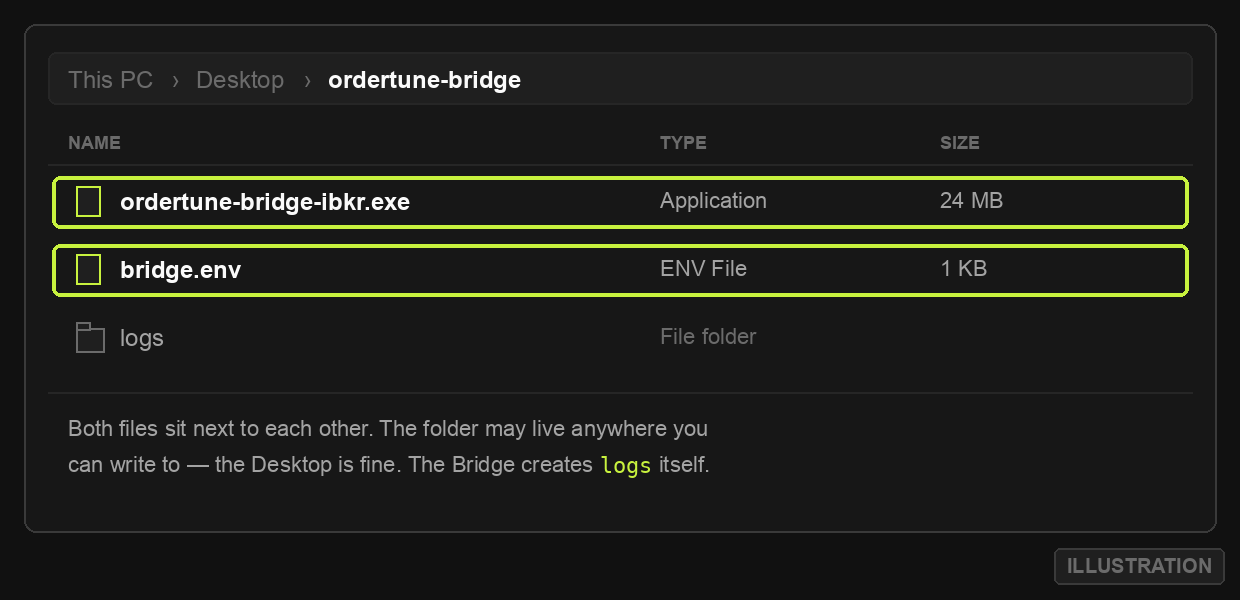
logs folder appears on its own.Windows hides file extensions by default. If your downloaded file shows up as bridge rather than bridge.env, that is the display, not the name — but it also means a file saved as bridge.env.txt looks identical. In Explorer, open View → Show → File name extensions and check what you actually have.
The first start
Double-click ordertune-bridge-ibkr.exe.
The first time, Windows shows a blue dialog that offers only one button, and that button is Don't run. This is Defender SmartScreen reacting to an executable it has not seen before. It is not a finding about the file.
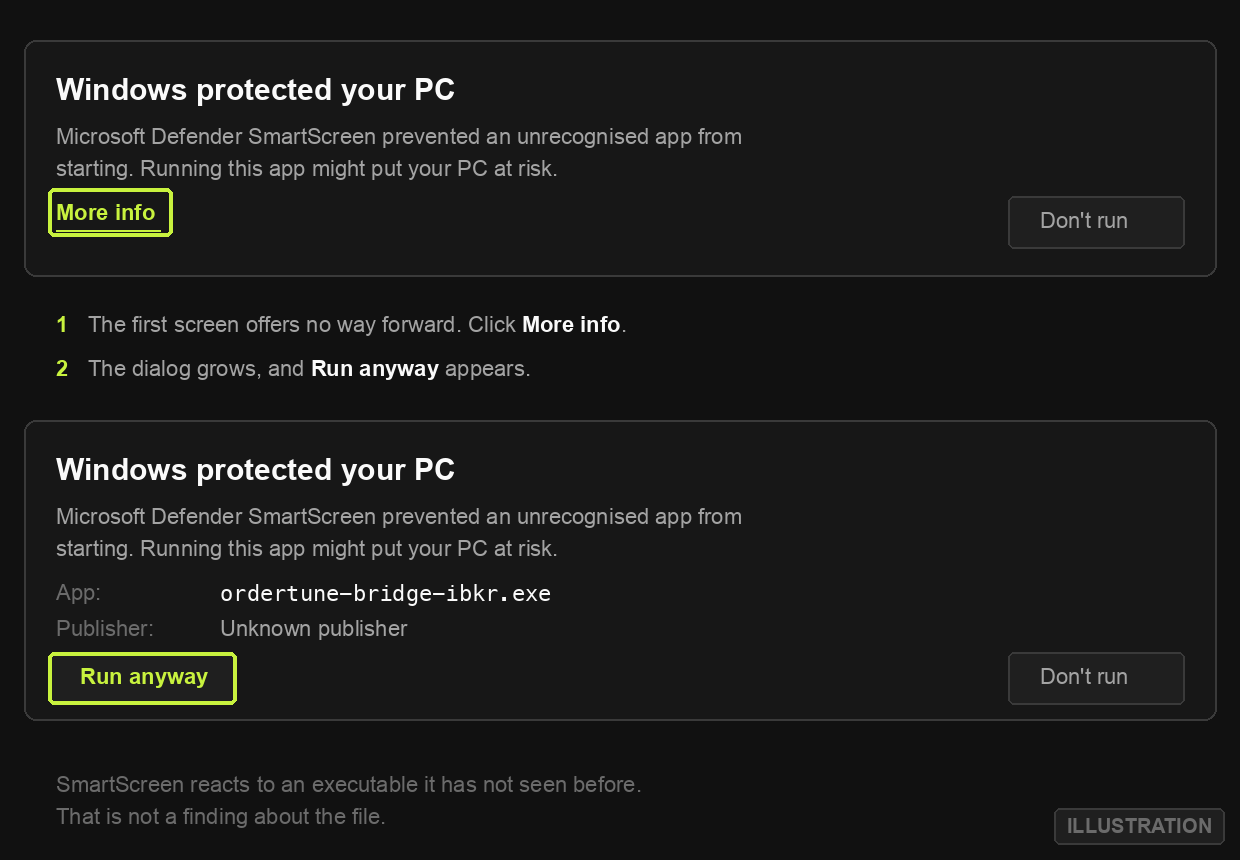
The dialog names an unknown publisher, and that is accurate — these builds are not signed yet. Windows will stop asking after the first run.
If you would rather check before you click: the Bridge is open source, and every release is built by a public GitHub Actions workflow from the tagged commit. You can read the source and the build log.
Pair it with your account
Pairing connects this machine to your Ordertune account. The Bridge shows a ten-character code; you type it into the Broker tab and confirm. The token itself never passes through your hands.
The first time it starts, the Bridge has no credentials — so a setup window opens in your browser and walks you through five steps. The first is the one that connects it to you.
1 — Connect this machine to Ordertune
Click Get a pairing code. The window shows a ten-character code, like
K7RMQ-3XBTW, and a link straight to your Broker tab.
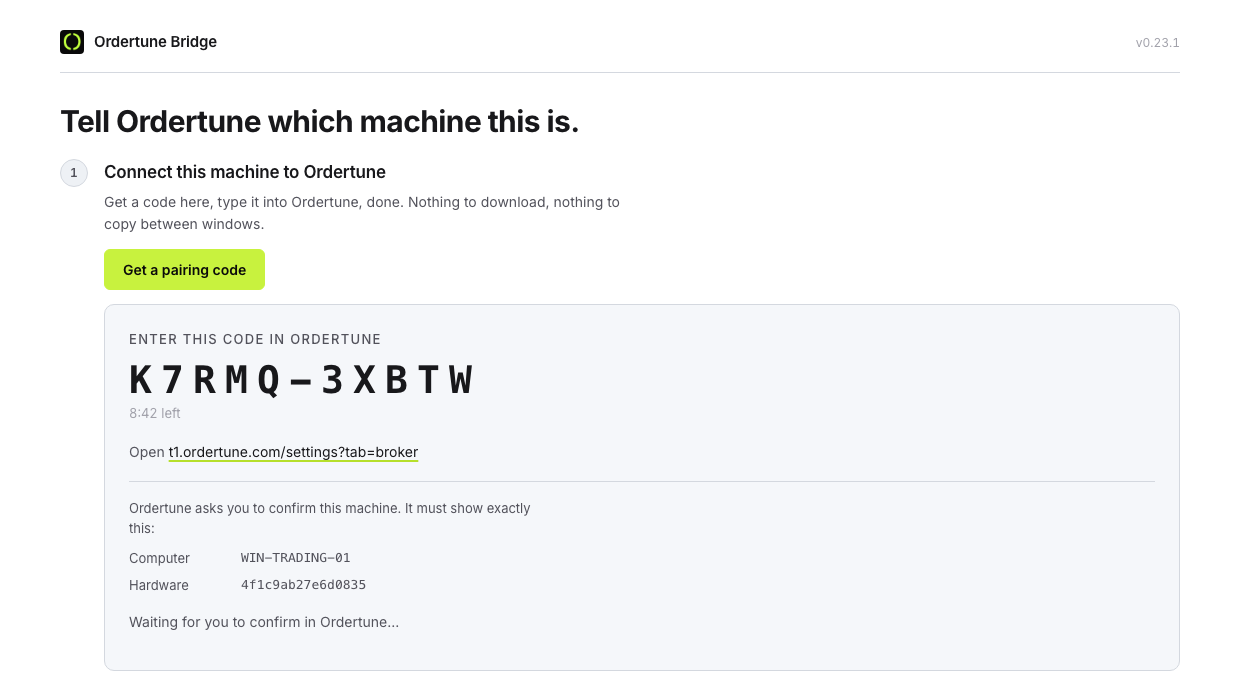
Open that link, type the code into Pair a bridge with a code, and click Check code.
2 to 5 — Trader Workstation
The remaining steps look for Trader Workstation:
- Find TWS — click Search for TWS. It probes the standard IBKR ports and offers the one that answers: logged in with your paper account that is usually 7497, with your live account most likely 7496. Click Use this. The wrong port is the single most common mistake, and the window takes it off your hands.
- Check the port — a real connection attempt, not a guess.
- Check the credentials — a real handshake against Ordertune.
- Hand the folder to TWS — the exact folder the Bridge reads its trade reports from. See the report folder below.
As soon as the Bridge has what it needs, it starts on its own and the same window turns into the Cockpit.
No browser on that machine? Then this window cannot open. Use No browser on that machine? Get a bridge.env file instead on the Broker tab, and put the downloaded file next to the executable yourself.
Whichever way you got here, Ordertune now asks you to confirm — and shows you which machine is asking:
| Computer | the name of the machine, e.g. WIN-TRADING-01 |
| Hardware | a sixteen-character fingerprint, e.g. 4f1c9ab27e6d0835 |
Compare those two with what your own Bridge is showing before you confirm. They are shown on both sides for exactly this reason. Only ever enter a code that your own Bridge is showing right now — a code someone sends you belongs to their machine, and confirming it would give that machine permission to place orders in your account.
Click Yes, pair this machine. Within a few seconds the Bridge picks up its
credentials, writes its own bridge.env, and carries on. Nothing to download,
nothing to copy.
The code is valid for ten minutes. If it runs out, ask for another — codes are single use and cost nothing.
The report folder
The Bridge shows the exact folder it reads: in step 5 of the setup window, and later under Settings in the Cockpit. Trader Workstation must write to exactly this folder: Global Configuration → Export Reports → Export directory, as set in Prepare TWS. Compare both character by character.
| Default | |
|---|---|
| Windows | C:\IBExport |
| Linux desktop | ~/IBExport |
| Linux server | /home/ordertune-bridge/IBExport |
To change the folder, edit TWS_EXPORT_DIR in bridge.env. It takes effect
the next time the Bridge starts. The Bridge misses a fill? Compare this path
first.
What you should see
Once it is running, the Bridge opens a local window — the Cockpit. It shows one sentence about the state and four lamps: Trader Workstation, Ordertune, account, order access.
The Cockpit is worth a look even when everything works, because it catches the fault you would otherwise notice on your first real order: if Read-Only API is still switched on in Trader Workstation, everything looks healthy — the connection holds, heartbeats run — and every order would be refused. The Cockpit says so at startup.
The Cockpit listens on 127.0.0.1 only, on a port the operating system picks, and every request needs a token that is regenerated at each start. There is no access from outside and no firewall prompt. Nothing is released, sent or cancelled in the Cockpit — it reads. You release every order yourself, in Order Management on t1.ordertune.com.
The log lives under %LOCALAPPDATA%\Ordertune\Bridge\logs\bridge.log. It
rotates daily and is kept for 30 days.
In the log, a good start looks like this:
INFO  Log file: .../logs/bridge.log
INFO  ordertune-bridge-ibkr v0.31.0 starting up
INFO  Handshake successful — Bridge is active.
INFO  TWS trade reports: reading .../IBExport.
After that, a heartbeat every 60 seconds.
If it does not start
The Bridge does not fail silently. It writes a plain-text block that says what happened, what to do, where the log file is, and a fixed reference code:
========================================================================
  BRIDGE COULD NOT START
========================================================================

  WHAT HAPPENED
  Nothing answers on port 7497, but something does elsewhere.

  bridge.env says:  IBKR_TWS_PORT=7497
  Answering ports:  7496 (TWS live)
  ...
  Reference: tws_wrong_port
========================================================================Since version 0.26.0 the Bridge is built without a console window, so there is nothing to read behind the program. Instead you get a message box with the same text, and the full block is in the log file.
Take the reference code — tws_wrong_port in this example — to Troubleshooting. Every code has an entry there.
Leaving it running
The Bridge only works while it runs, and Trader Workstation only works while it is logged in. Set up autostart once, and both start when you sign in to the machine.
Autostart with the Startup folder (once):
- Press Win + R, type
shell:startup, and press Enter. Your Startup folder opens. Everything in it starts when you sign in. - Trader Workstation: right-click its desktop icon, Copy. Right-click inside the Startup folder, Paste.
- Bridge: right-click
ordertune-bridge-ibkr.exein its folder, Copy. In the Startup folder: right-click, Paste shortcut (on newer Windows under Show more options). A shortcut, not the program itself: the Bridge stays next to its settings file.
After a reboot: connect by Remote Desktop once. Windows signs you in and both programs start. Log in to Trader Workstation; the Bridge finds it on its own.
When you are done, close the Remote Desktop window with the X. Do not sign out. Signing out stops Trader Workstation and the Bridge.
--headless stops the Bridge from opening the Cockpit and from putting a
dialog on screen. It is meant for a machine with nobody in front of it. If
you start the Bridge from the Startup folder or by double-clicking, you do
not need it.
Next: confirm the connection.